Theme
Language
Menu
Features
Every feature you need to run your store
Piee POS covers the daily work of a shop, café or restaurant: selling, tables, stock, staff and the numbers behind them.
Features marked with a plan name are included from that plan up. Everything else is on every plan, the free one included.
Sell
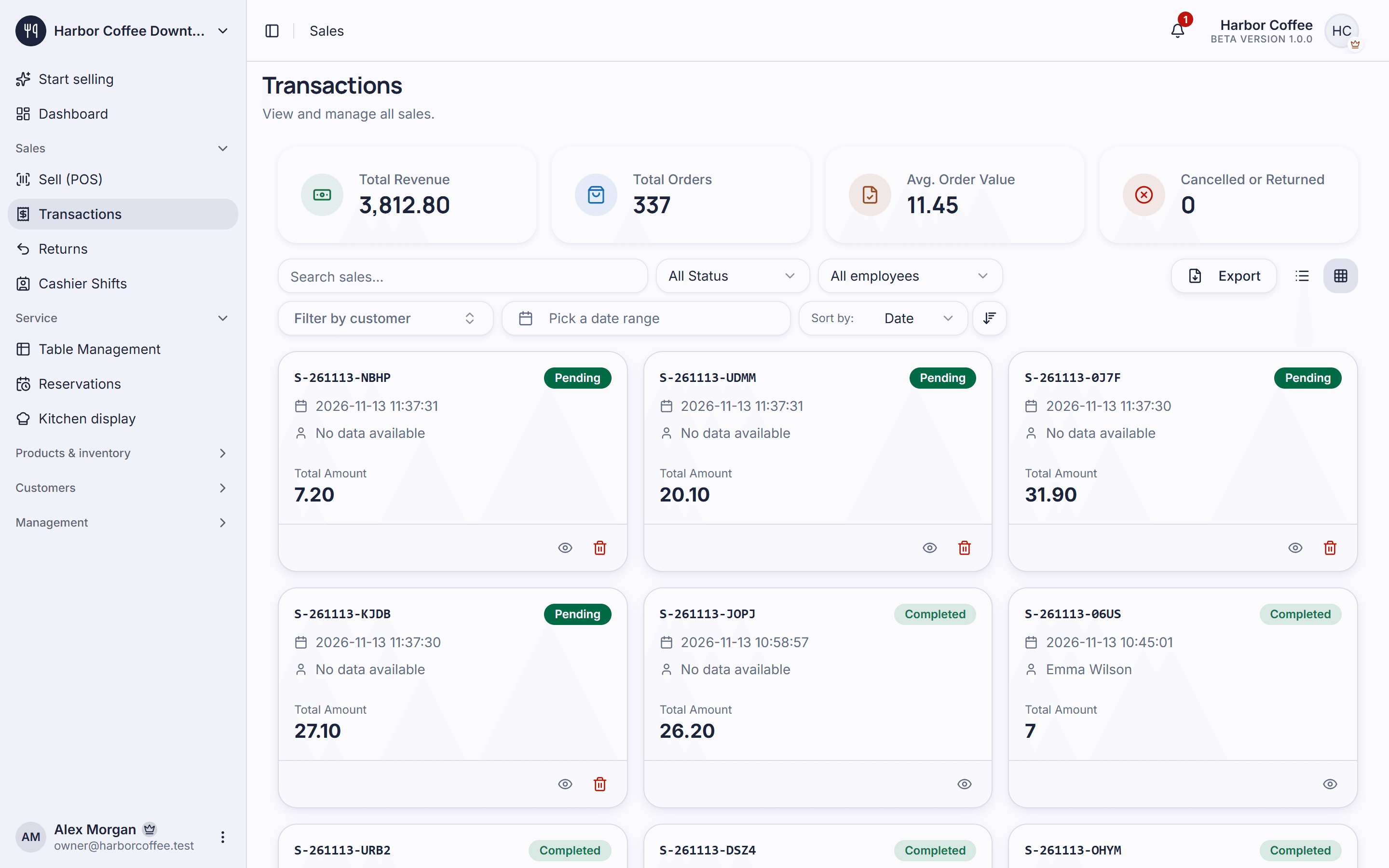
A checkout screen built for speed, at the counter or on the shop floor, with every order kept where you can find it again.
- Checkout screen
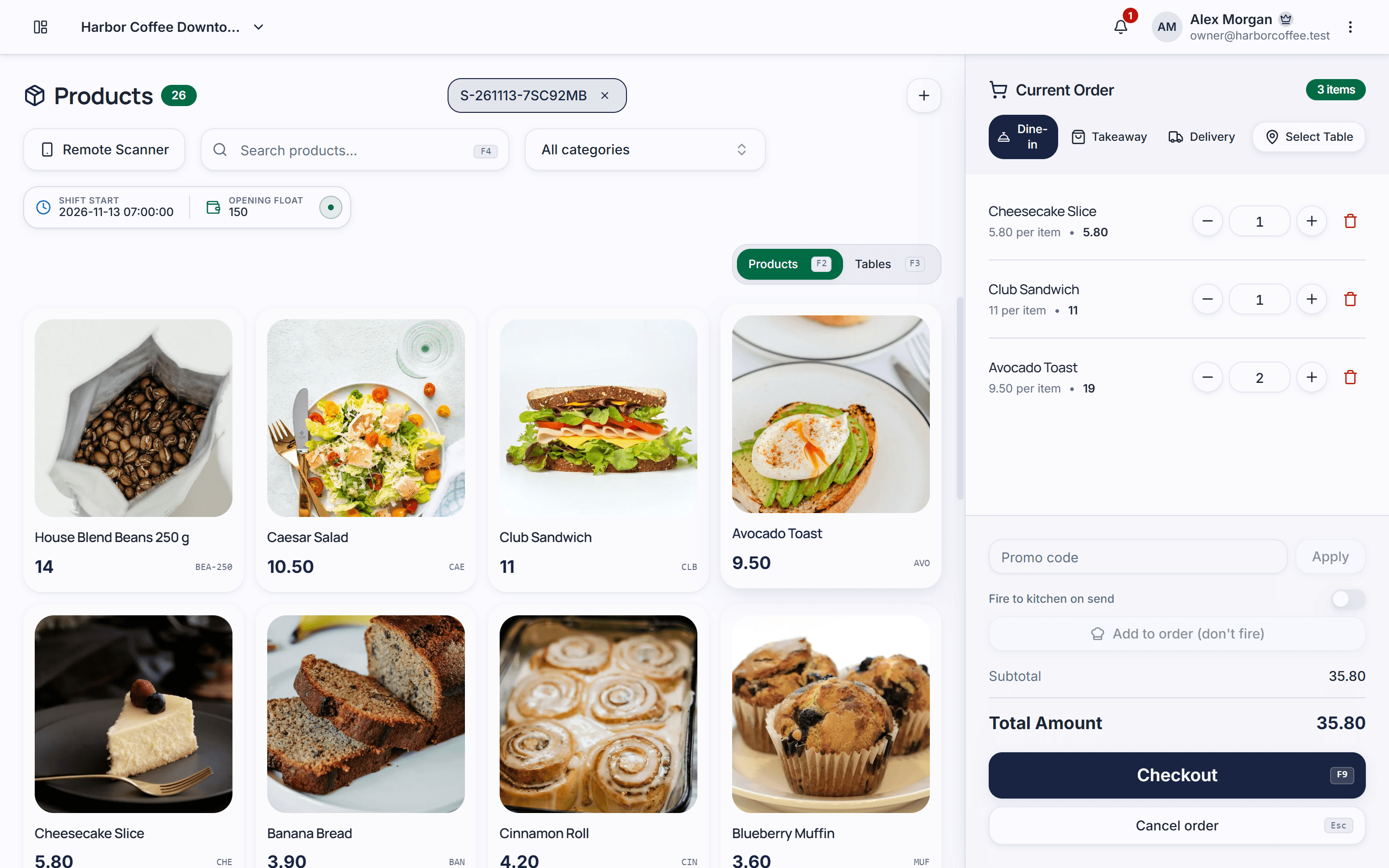
- Pick products from a grid or a list, filter by category, and build the order in a cart that shows the total as you go.
- Keeps selling offline
- If the connection drops, the checkout keeps taking orders on the device and sends them to the server once the connection is back. Promotions and loyalty points need a connection.
- Takeaway, dine-in and delivery
- Mark each order as takeaway, dine-in or delivery, so reports can tell them apart.
- Several open orders
- Park an order, serve the next customer and come back to it; open orders stay as tabs on the checkout screen.
- Split, merge and move orders
- Split a bill between guests, merge two orders into one or move an order to another table.
- Discounts at the till
- Give a discount on an order when you need to, with a record of it on the sale.
- Printed receipts
- Print receipts from the browser, on thermal paper rolls or on an A5 page.
- Digital receipt by QR code
- Each receipt carries a QR code; the customer scans it and sees the receipt on their phone, no account needed.
- Barcode scanning
- Plug in a USB barcode scanner and add products to the order by scanning them.
- Your phone as a scanner
- No scanner yet? Pair a phone with the checkout screen and scan barcodes with its camera.
Tables and kitchen
See your floor at a glance, send orders to the kitchen and keep track of who is coming tonight.
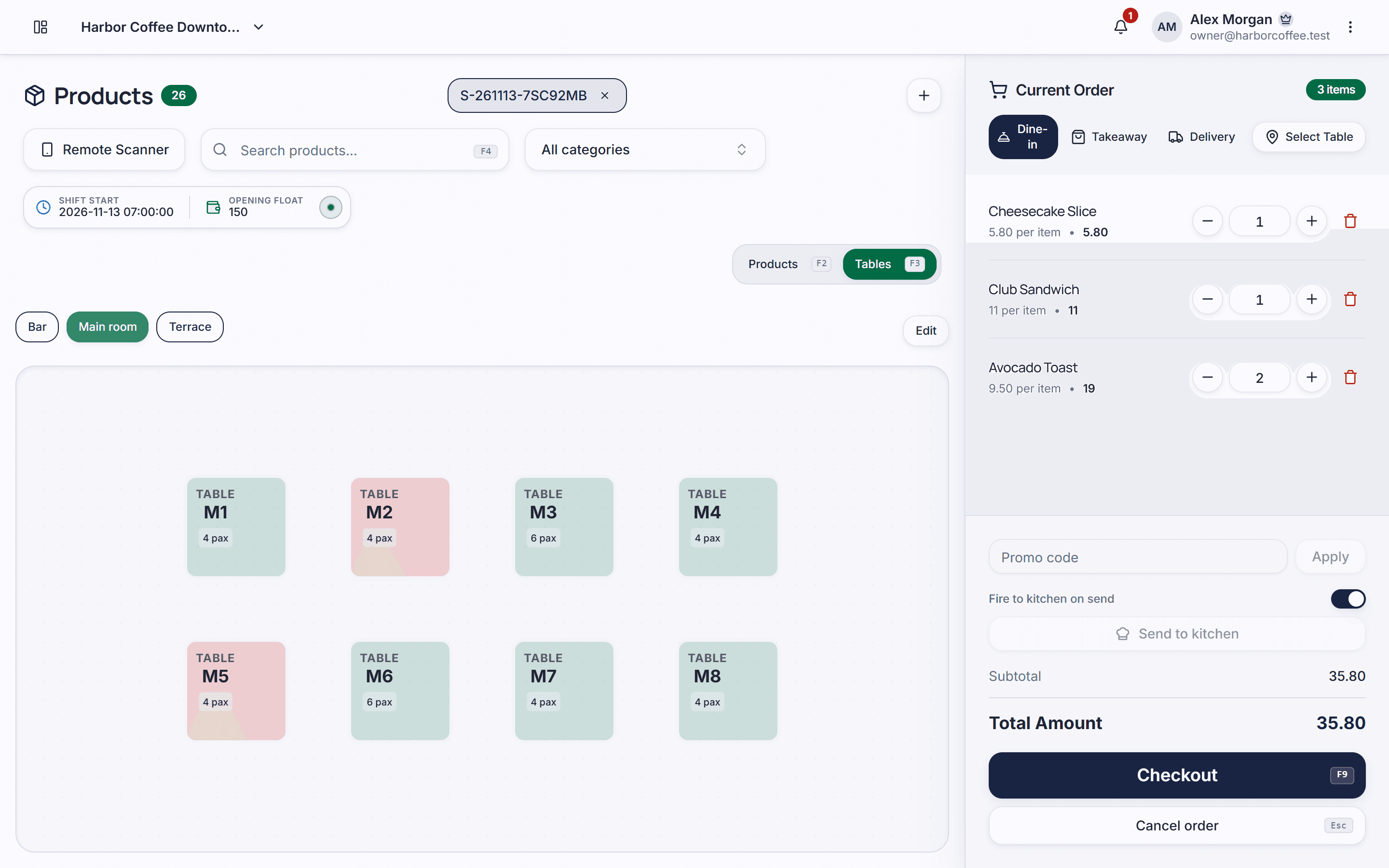
- Table floor map
- Lay out your tables the way they stand in the room and pick a table for each dine-in order.
- Areas
- Group tables into areas such as indoor, terrace or upstairs.
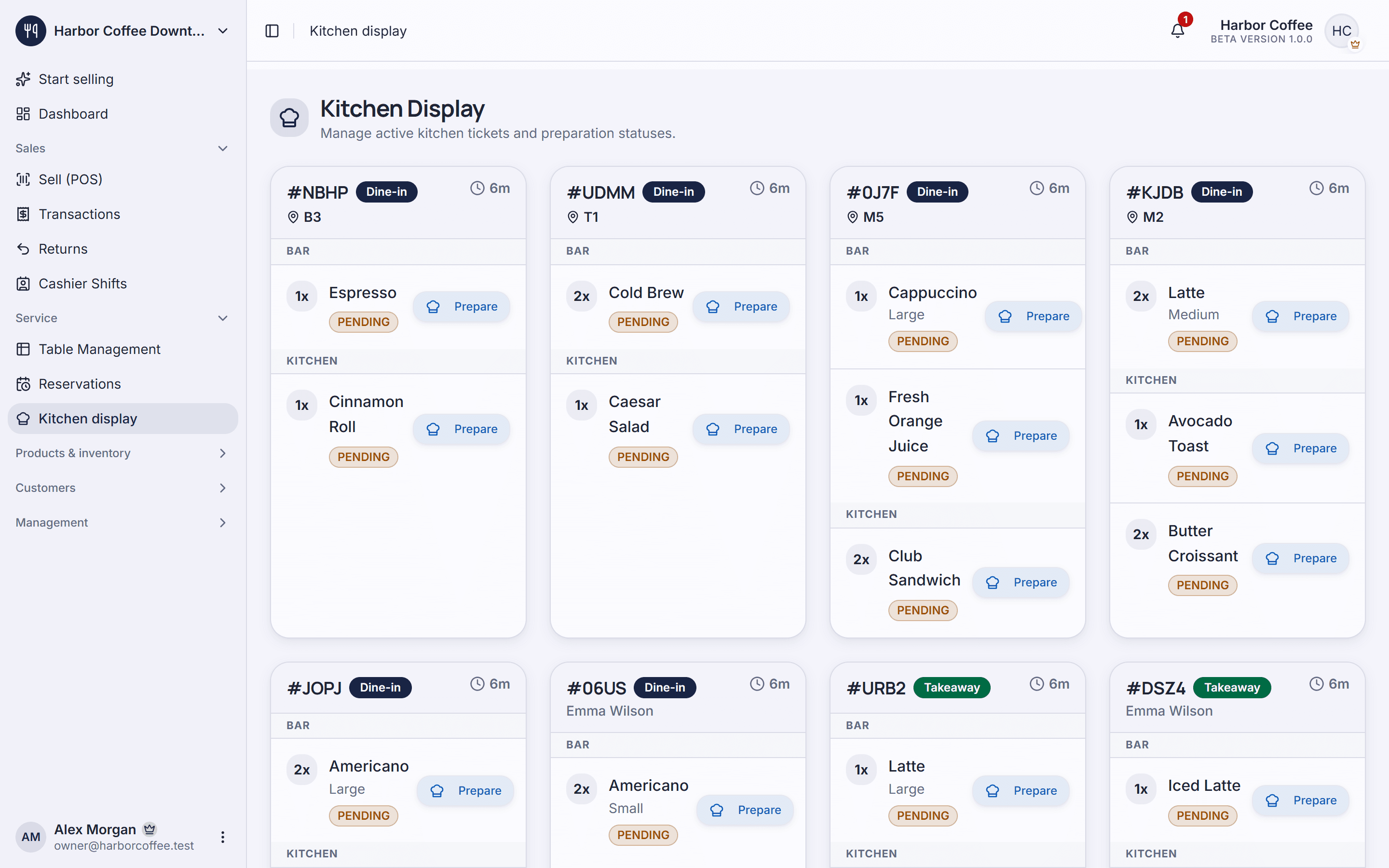
- Kitchen display
- Orders appear on a screen in the kitchen or behind the bar, and each item is ticked off as it is prepared.
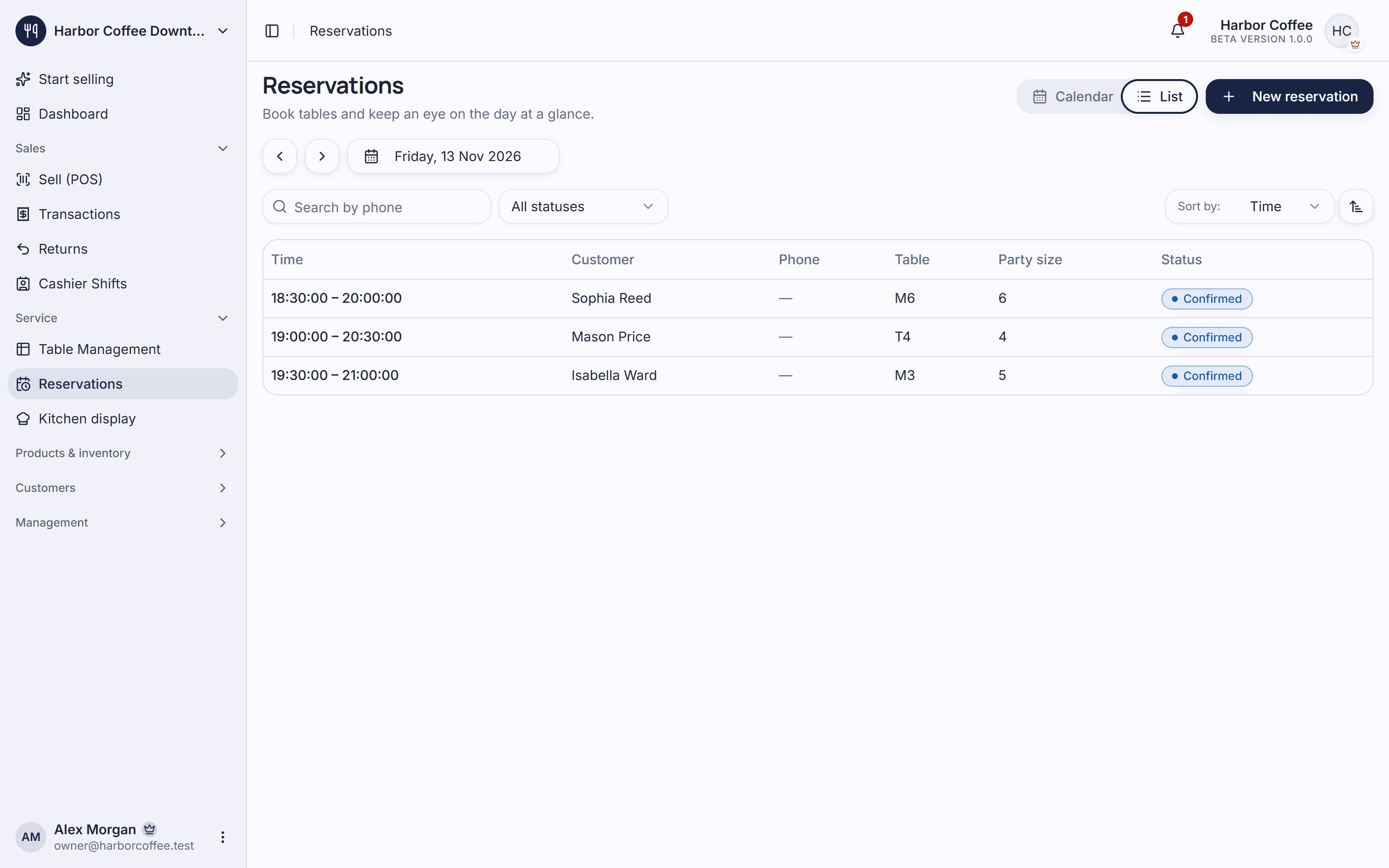
- ReservationsFrom Pro
- Take bookings in a calendar, see the day's reservations and mark each one completed, cancelled or no-show.
Shifts and cash
Every shift starts with a float and ends with a count, so the cash drawer always has an explanation.
- Open and close shifts
- Open a shift with the starting cash and close it by counting the drawer against what was sold.
- Cash in and cash out
- Record money added to or taken from the drawer during a shift, with the reason.
- Sales per shift
- Open any shift and see every sale made in it.
Returns
Take goods back and refund the customer without losing track of the original sale.
- Returns and refunds
- Create a return from a sale, choose the items coming back and record the refund.
Catalogue
Describe what you sell once, with its sizes, colours and extras, and use it everywhere.
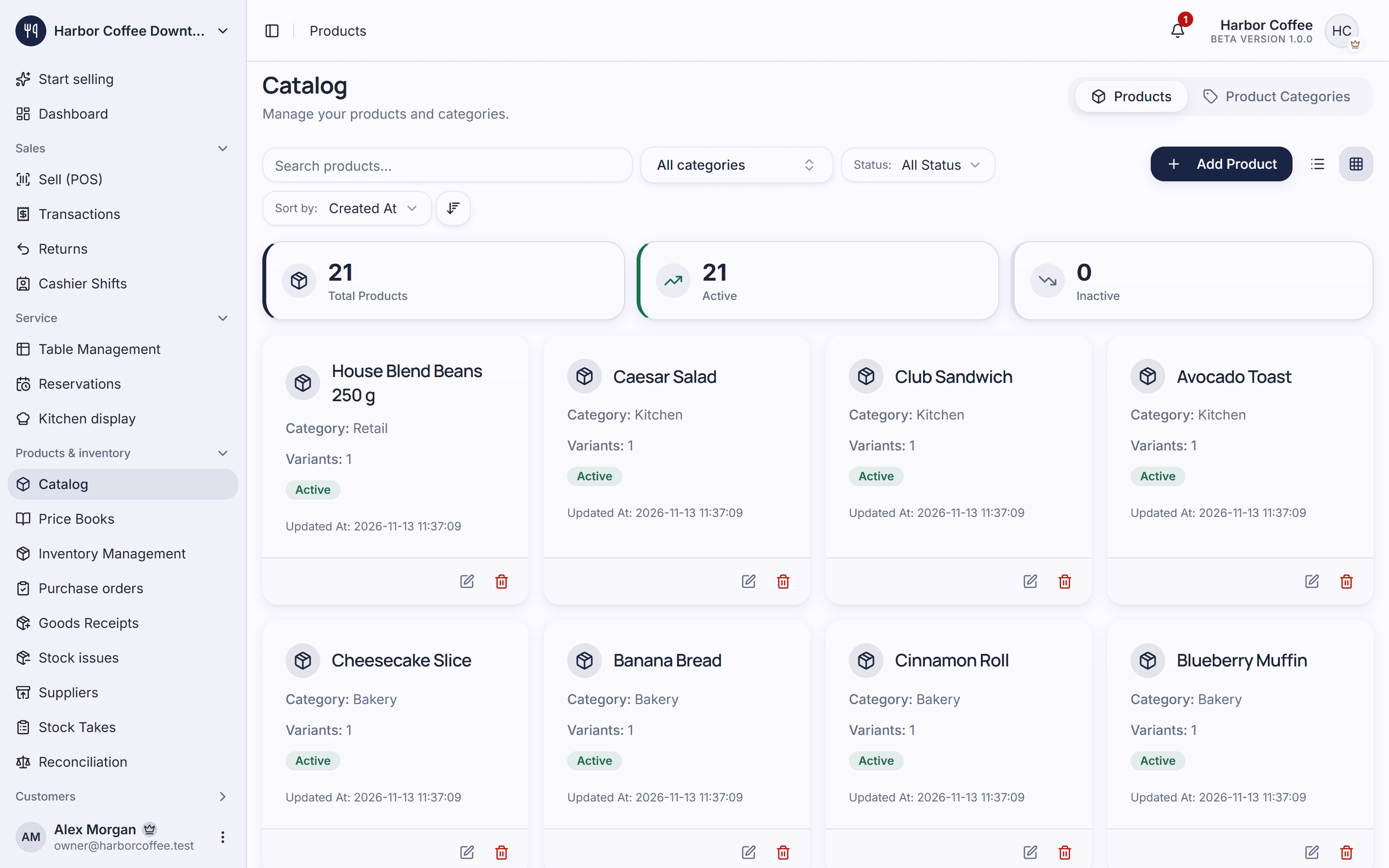
- Products and variants
- One product, many variants: sizes, colours or pack sizes, each with its own price, barcode and stock.
- Options and extras
- Build option groups such as size, sugar level or toppings, with price adjustments, and attach them to the products that need them.
- Barcode labels
- Print barcode or QR labels for your products from the browser.
- Price booksFrom Pro
- Keep different price lists and choose which one a store sells from.
Inventory and purchasing
Know what is on the shelf, what came in, what went out and what to order next.
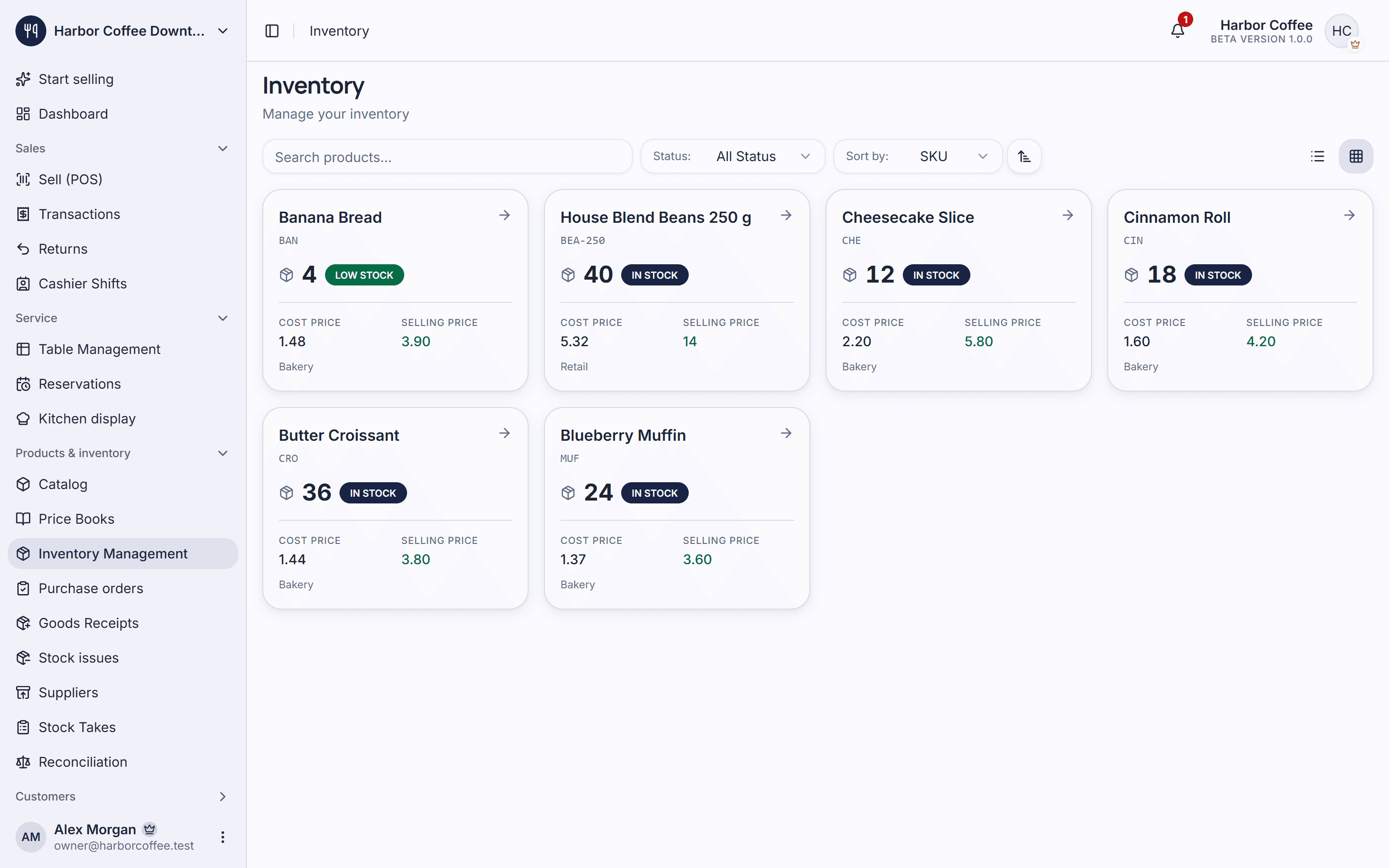
- Stock for every variant
- See the quantity on hand for each variant in each store, and the history of every change.
- Goods receipts
- Record deliveries as they arrive so stock and cost stay up to date.
- Stock issues
- Take stock out for the kitchen or other internal use, with a document that says why.
- Suppliers
- Keep your suppliers and their contact details next to the products they deliver.
- Purchase ordersFrom Pro
- Write an order to a supplier and turn it into a goods receipt when the delivery arrives.
- Stock takesFrom Pro
- Count what is really on the shelf and let Piee POS correct the difference.
- Stock reconciliationFrom Pro
- Check recorded stock against its movement history and find where the numbers drifted.
Customers and marketing
Remember who buys from you and give them a reason to come back.
- Customer list
- Save your customers, attach them to sales and see who buys from you.
- PromotionsFrom Starter
- Set up discounts and promo codes, and use them at the checkout.
- Loyalty pointsFrom Starter
- Customers earn points on what they spend and redeem them on a later visit.
Team
Give each person their own account and decide exactly what they can see and do.
- Staff accounts
- Invite each employee by email to their own account; no shared passwords.
- Roles and permissions
- Built-in roles decide what each person can open and change, store by store.
- Custom rolesFrom Pro
- Create your own roles and pick their permissions one by one.
- Attendance and timesheetsFrom Pro
- Staff clock in and out, including by QR code, and you get schedules and timesheets.
Business
Follow one store or several, in your own language, and take your sales data with you.
- Several stores
- Run more than one location from one account, each with its own stock, shifts and settings. The number of locations depends on your plan.
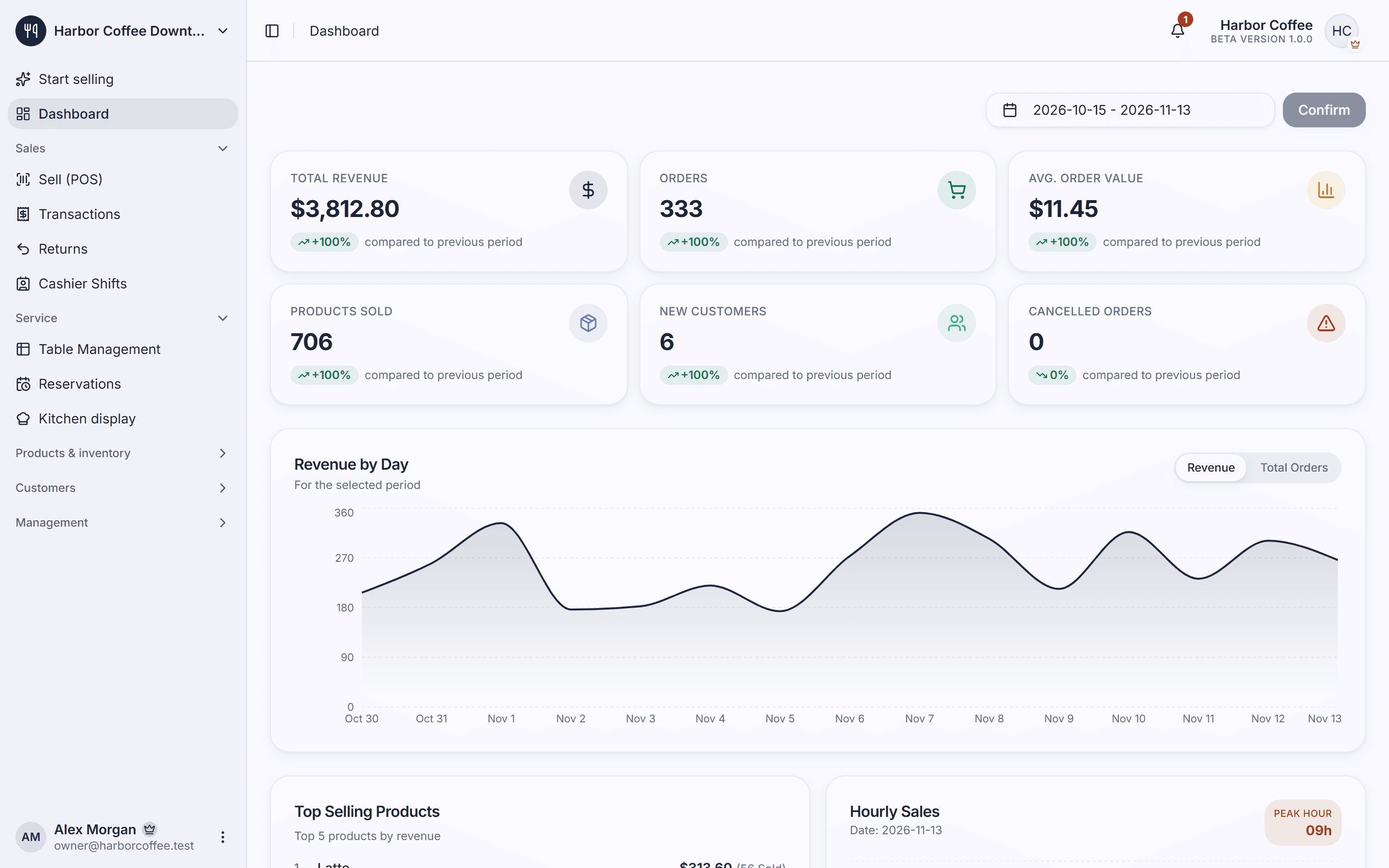
- Dashboard
- Revenue, best-selling products, sales by hour, payment methods and top staff, for any date range and store.
- Export to Excel
- Download your sales as Excel files for your accountant or your own analysis.
- Your own payment methods
- Define the ways your customers pay, such as cash, card, bank transfer or e-wallet, and record each sale against one. Piee POS records the payment; it does not process cards.
- An app in many languages
- The app is available in a dozen languages, and each person chooses their own.
- Light, dark and colour themes
- Light or dark mode and a set of colour themes, chosen per person.
AI, with your own key
Optional helpers that run on your own API key from Google, OpenAI or Anthropic. Off until you turn them on.
- Voice ordering
- Say the order out loud and it is added to the cart for you to check.
- AI assistant
- Ask it to prepare changes to products, prices, customers or purchase orders. It shows what it will do and nothing is saved until you confirm; confirmed changes are logged.
Set up your store today
Create an account, add your products and take your first order. The free plan has no time limit.